
14"
User Manual
INDEX
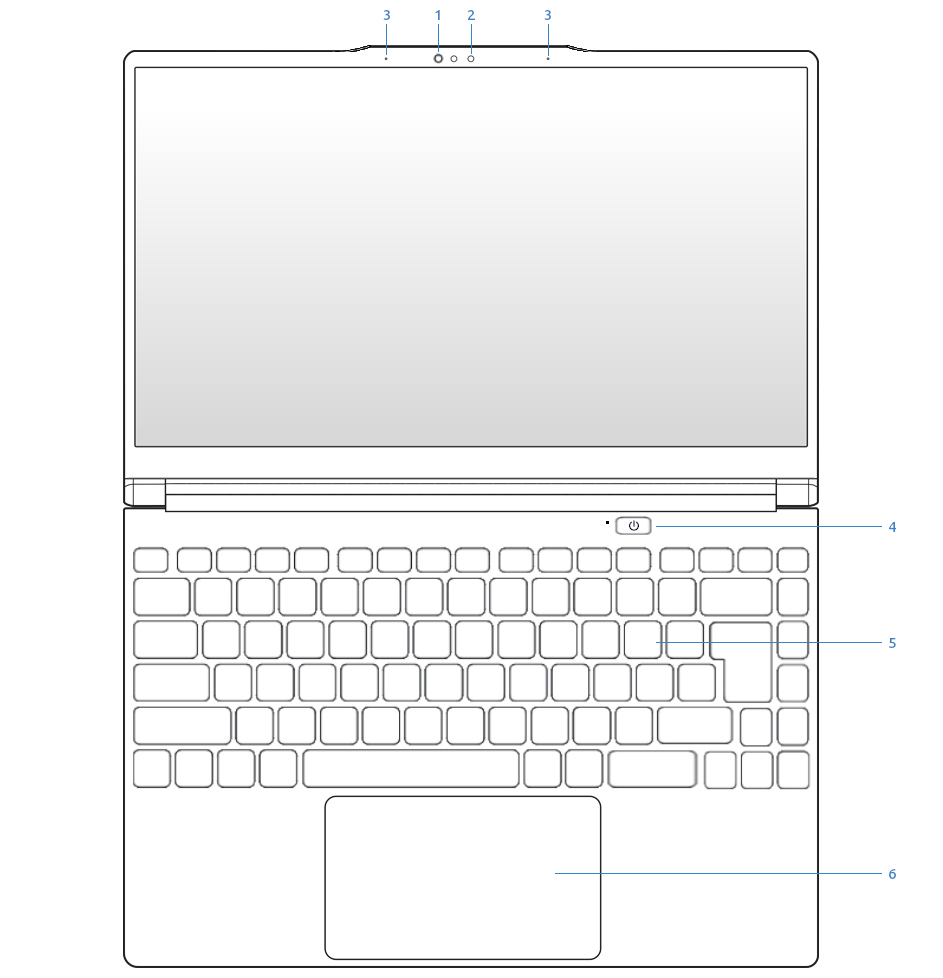
| FRONT DIAGRAM |
| 1. Camera |
| 2. IR Camera |
| 3. Mic |
| 4. On/Off Button |
| 5. Keyboard |
| 6. Touchpad |
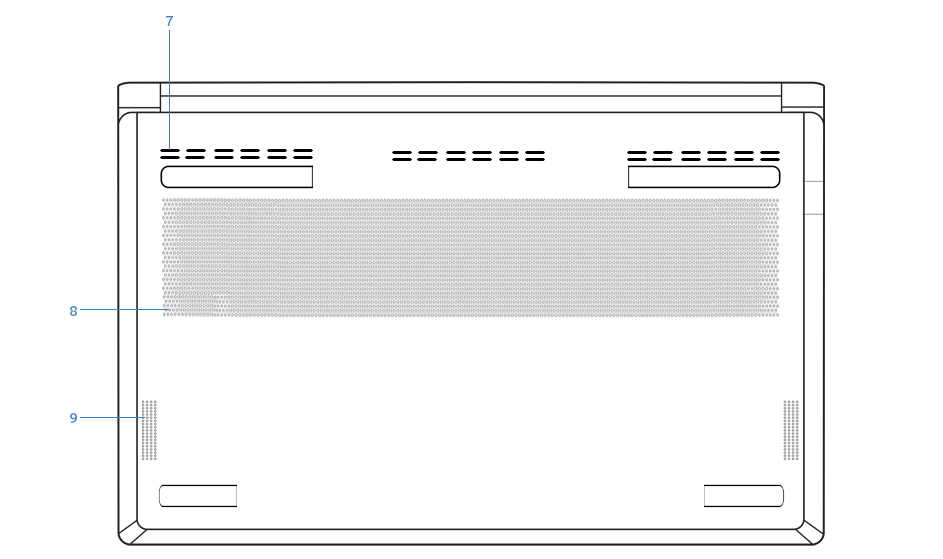
| BACK DIAGRAM |
| 7. Ventilation |
| 8. Ventilation |
| 9. Speakers |
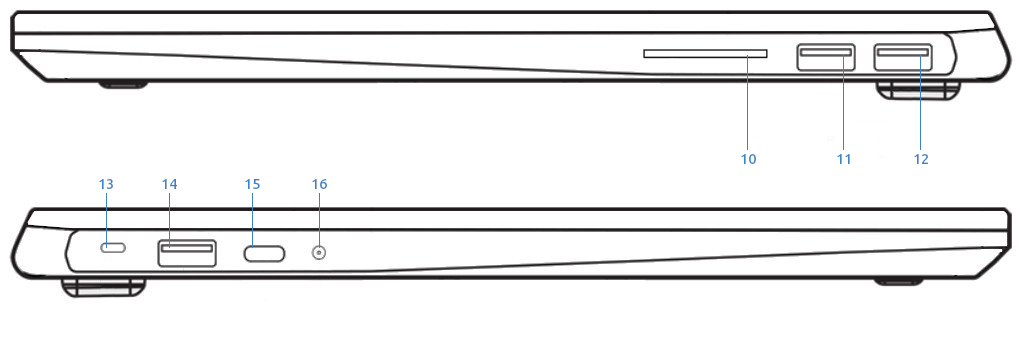
| LATERAL DIAGRAMS |
| 10. SD Card Reader |
| 11. USB-A 3.2 Gen1 [5Gbps] |
| 12. USB-A 3.2 Gen1 [5Gbps] |
| 13. Kensington Lock |
| 14. USB-A 3.2 Gen1 [5Gbps] |
| 15. USB-C 3.2 Gen 2 [10Gbps, PD, DP] |
| 16. 2x1 Combo Jack |

| REAR DIAGRAM |
| 17. Ventilation |
| 18. HDMI 2.1 |
| 19. USB-C Thunderbolt4 [40Gbps] PD 3.1 100W + Dp 1.4a |
| 20. RJ45 [1Gbps] |
BOX CONTENTS
FIRST STEPS
To turn on the computer, hold down the power button for 1 second and release it, located on the upper right side of the C Chassis.
If the distribution you have chosen allows OEM installation (no user
creation), it is time for you to create your username and password and
set up your network.
In case the chosen distribution does not allow OEM installation, the user and password is slimbook, in addition, if the root user is enabled or you have requested disk encryption, its password is also slimbook, change it to a secure one!
ISO KEYBOARDS FUNCTIONS
| DESCRIPTION | |
| Fn + F1 - Sleep Mode | Fn + F7 - Increase backlight intensity |
| Fn + F2 - Enable / Disable SUPER key | Fn + F8 - Mute volume |
| Fn + F3 - Switch Display Output | Fn + F9 - Decrease volume |
| Fn + F4 - Airplane mode ON/OFF | Fn + F10 - Increase volume |
| Fn + F5 - Change work modes | Fn + F11 - Decrease brightness |
| Fn + F6 Decrease backlight intensity | Fn + F12 - Increase brightness |
To access the "Boot menu": Repeatedly press the F7 key after powering on.
To enable/disable the webcam: Press the key combination Fn+Prt Screen.
ANSI KEYBOARD FUNCTIONS
| DESCRIPTION | |
| Fn + F1 - Sleep Mode |
Fn + F7 - Increase backlight intensity |
| Fn + F2 - Enable / Disable SUPER key | Fn + F8 - Mute volume |
| Fn + F3 - Switch Display Output | Fn + F9 - Decrease volume |
| Fn + F4 - Airplane mode ON/OFF | Fn + F10 - Increase volume |
| Fn + F5 - Enable/Disable touchpad | Fn + F11 - Decrease brightness |
| Fn + F6 - Decrease backlight intensity | Fn + F12 - Increase brightness |
BATTERY
Try not to discharge the battery from 100% to 0% directly; instead, aim
to use the battery within and intermediate range between both extremes,
as it experiences less stress (20-80%). Try to keep it above 20%.It is also recommended to connect the device to power only when charging and not to leave it always connected.
Avoid constantly connecting and disconnecting the adapter every few minutes. Once the charging cycle is established, it's best not to interrupt it, thereby reducing battery degradation.
For more information on this topic, please check our blogBattery Care Tips
| STATUS INDICATOR | CHARGE STATUS |
| Red LED | Charging |
| White blinking LED | Low battery |
| LED off | Fully charged |
WORK MODES
Setup → Advanced → Operating Mode.
These modes modify TDP values and fan speed, allowing you to optimize performance for either quieter operation or higher power, depending on your needs.
For these key combinations to work correctly and display a pop-up notification when switching modes, this package must be installed: Slimbook Service.
| DESCRIPTION | |
|
ENERGY SAVER |
Reduced TDP for increased battery level and quiet profile |
| BALANCED | Recommended mode for power and battery balance |
| PERFORMANCE | Increased TDP for heavy-duty tasks, but reduces battery level |
| TDP VALUES WITH ORIGINAL 100W CHARGER - PL1, PL2, PL4 * | |
|
ENERGY SAVER |
In development |
| BALANCED | In development |
| PERFORMANCE | In development |
| TDP VALUES IN BATTERY MODE - PL1, PL2, PL4 * | |
| ENERGY SAVER | In development |
| BALANCED | In development |
| PERFORMANCE | In development |
PL1 (STAPM)
– Sustained Thermal and Power Management
PL2 (sPPT)
– Short-term Package Power Tracking
PL4 (fPPT)
– Fast Package Power Tracking
MOTHERBOARD SECURITY
RECOMMENDATIONS
It's recommended not to use your device when temperature is over 35 degrees.
Try to keep vent holes clean and unobstructed.
Use appropiated protection to carry the computer, avoid crushings and try not to place objects such as the charger over or under it.
MAINTENANCE
Thermal paste manufacturers only give 1 year warranty, so you should change it approximately every 1-2 years for proper maintenance.
If you need help during the process, you can follow this tutorial: How to replace thermal paste
Para limpiar el portátil, utilice únicamente un paño suave humedecido con agua. No use productos químicos, limpiacristales. To clean the laptop, do use only a slightly wet soft cloth. Do not use chemical products or cleaners.
To open the device you can follow this
link where we have some step-by-step tutorials on how to do it.
You do not lose the warranty for opening the laptop, but you do
lose it if you cause any damage due to it. Therefore, although you can
open the laptop, do not open it if it is not neccesary and do not do it
during the first months of use, to test that everything works properly
in a while.
If you have little experience and you want one of our
technicians to perform the maintenance, you can contact us through the
contact form at
support to get a budget.
SOFTWARE, DRIVERS AND FIXES
If you have reinstalled the OS in your device, you would need to add our package repository .
The packages for this laptop are: slimbook-meta-common, slimbook-meta-executive.
If your desktop environment is Gnome or Plasma, you will need to install its corresponding meta packages: slimbook-meta-gnome y slimbook-meta-plasma, respectively.
More information about the meta-packages here.
ANOTATIONS
Keep power button pressed for 1 or two seconds to turn on your laptop.
In some OS as Ubuntu, touchpad can be configured by zones, allowing you to enable right click or even central-click.
With our app Slimbook Service (at Linux) and natively in Windows, touchpad can be activated/deactivated by double tapping the sensor, which is situated at the top left corner of the touchpad.
To access the BIOS/UEFI: Press the F2 key repeatedly after turning on the computer.
To access the "Boot menu": Press the F7 key repeatedly after turning on the computer.
WHAT DO I DO WHEN MY LAPTOP HAS PROBLEMS?
These tutorials may be helpful in identifying the problem.
If your Slimbook needs to be serviced by a technician in or out of warranty, open a ticket at:
Support