User manual

Package contents
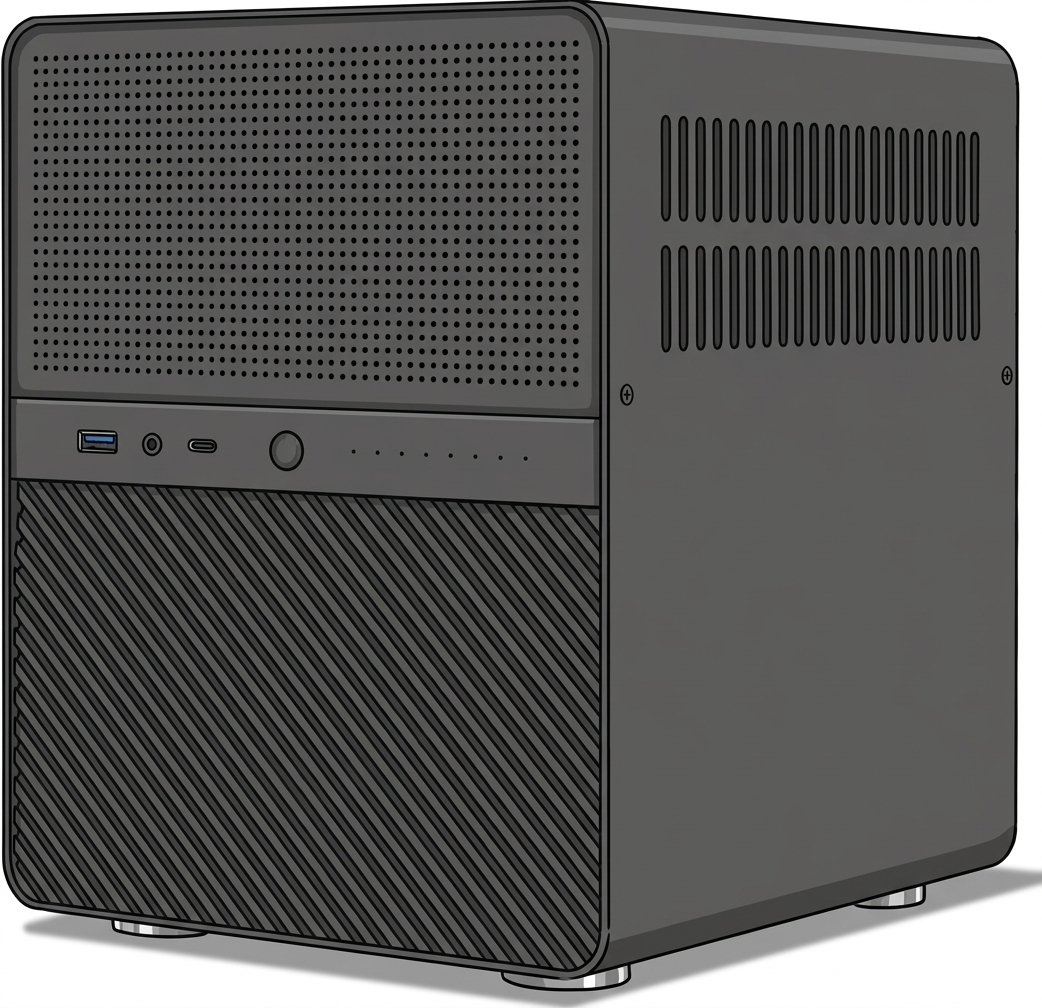
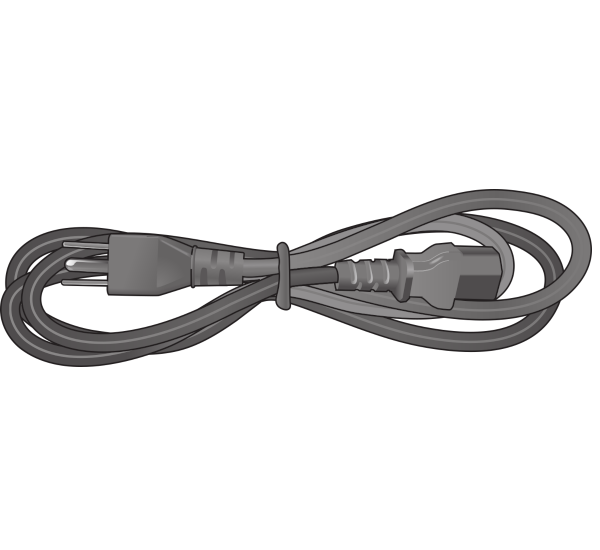
Getting started
1. Place the Slimbook NAS Cube on a stable and clean surface, preferably in a well-ventilated area.
2. Connect the power supply cable and turn on the device.
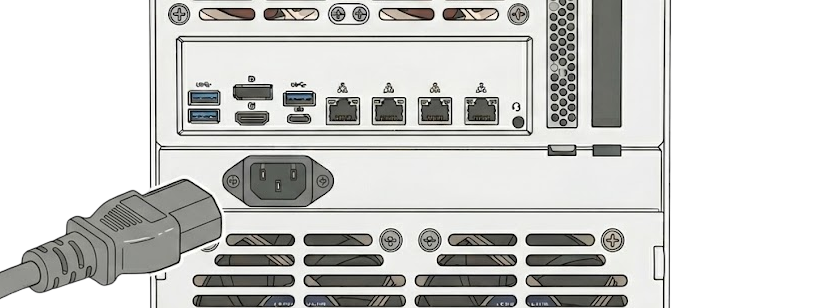
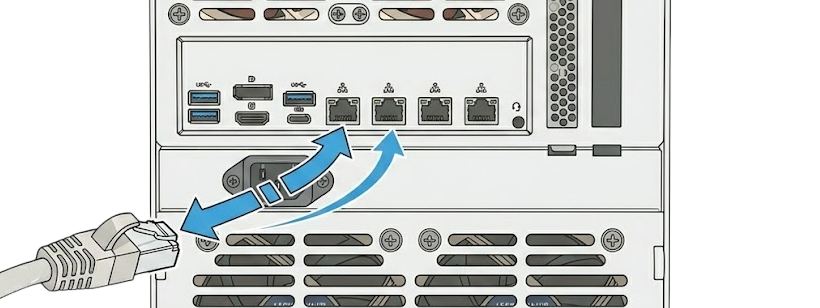
3. Connect a network cable from the router to the NAS.
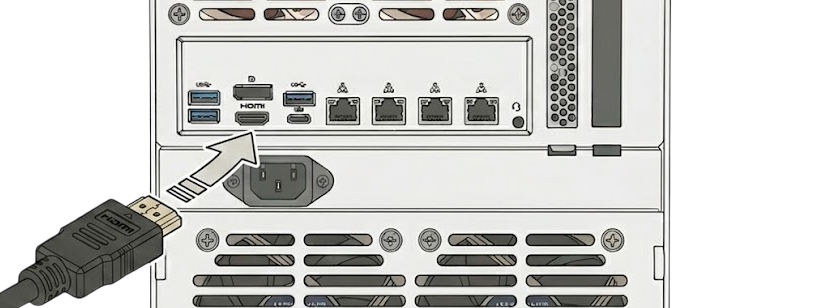
4. Connect a monitor via HDMI or DisplayPort cable to the motherboard.
Boot up your new Kymera
Access to your server varies depending on the operating system you selected.
If the selected operating system does not allow OEM installation:
· User: slimbook
· Password: slimbook

In the case that the operating system is PROXMOX:
· User: root
· Password: slimbook

In the case that the operating system is TRUENAS:
· User: truenas_admin
· Password: slimbook

MOTHERBOARD SECURITY
To access the BIOS, press DEL while booting. Avoid wireless keyboards; it is better to use a wired keyboard.
Avoid changing unknown parameters, this could cause boot to fail.
To enter the boot menu, press the corresponding key (the most common ones are F7, F8, F10, and F11).
RECOMMENDATIONS
Try to keep vent holes clean and unobstructed.
It is recommendable to clean the vent holes with a brush or similar, as well as clean the components inside from time to time.
Use appropriated protection to carry the computer, avoid crushings and try not to place objects such as the charger over or under it.
It's recommended not to use your device when temperature is over 35 degrees.
ANOTATIONS
To turn on your computer, connect the power supply, then connect a monitor/television via HDMI and finally press the power button located on the top.
This device is composed of standard parts that can be upgraded or replaced:
-
RAM
-
M.2 SATA or NVME disk drives
-
2.5" HDD or SSD, via SATA3.
If you want to open the device without voiding the warranty, you just need to contact us, and we will get back to you as soon as possible.