QubesOS is an open source operating system that is security-oriented, it utilises an hypervisor to isolate specific application usages with containers without access to the rest of the system, or rather very restricted access.
In this tutorial, we will show you how to install QubesOS in one disk that contains another operating system (Windows/Linux)
You can download the QubesOS installation ISO here.
You will need a dedicated installation media to install QubesOS correctly, it is not possible to install the OS with tools such as Ventoy or similar
You will need to dedicate space in your system to install QubesOS, for minimum requirements only 32GB are required, however 128GB is recommended for normal use.
Depending in your device and platform, you need to activate virtualisation tehcnologies to use QubesOS, Intel VT-d o AMD-Vi
Installation
1. After booting the installation media, several options will appear, we will choose the Install QubesOS option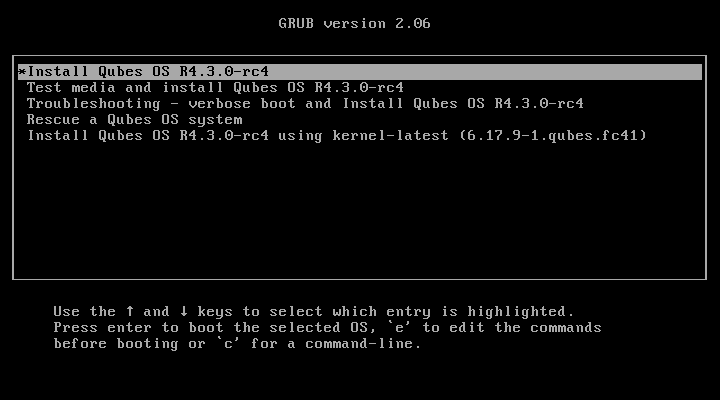
2. It will ask us to select our language and keyboard distribution
3. After confirming our language and keyboard distribution, we will choose the section Installation Destination and select the disk that we want to use for our installation, the one we allocated free space before, and we will select Custom in the Disk Layout section
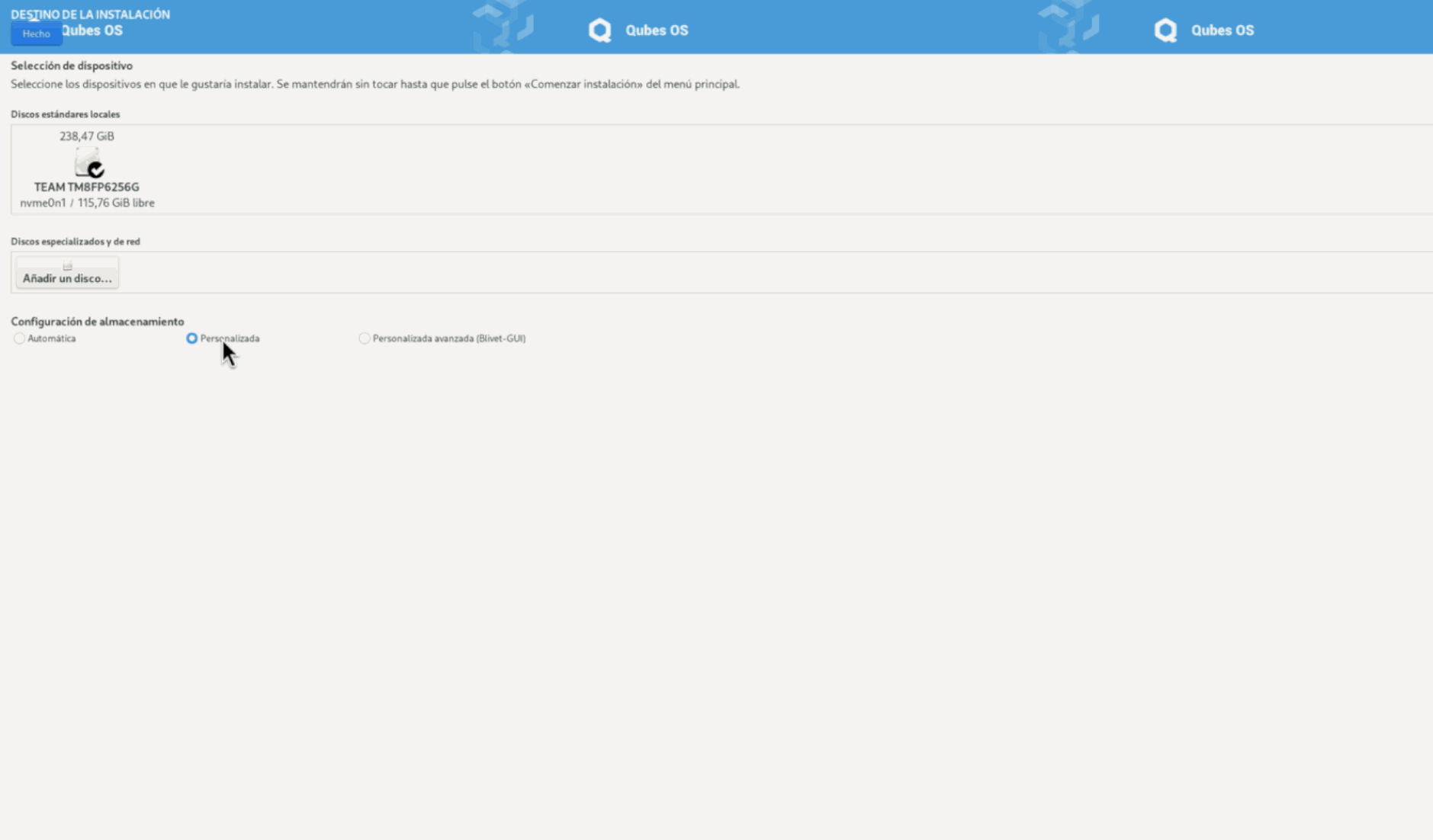
4. We will open the Unknown section and select EFI SYSTEM PARTITION, in the mounting point we will write /boot/efi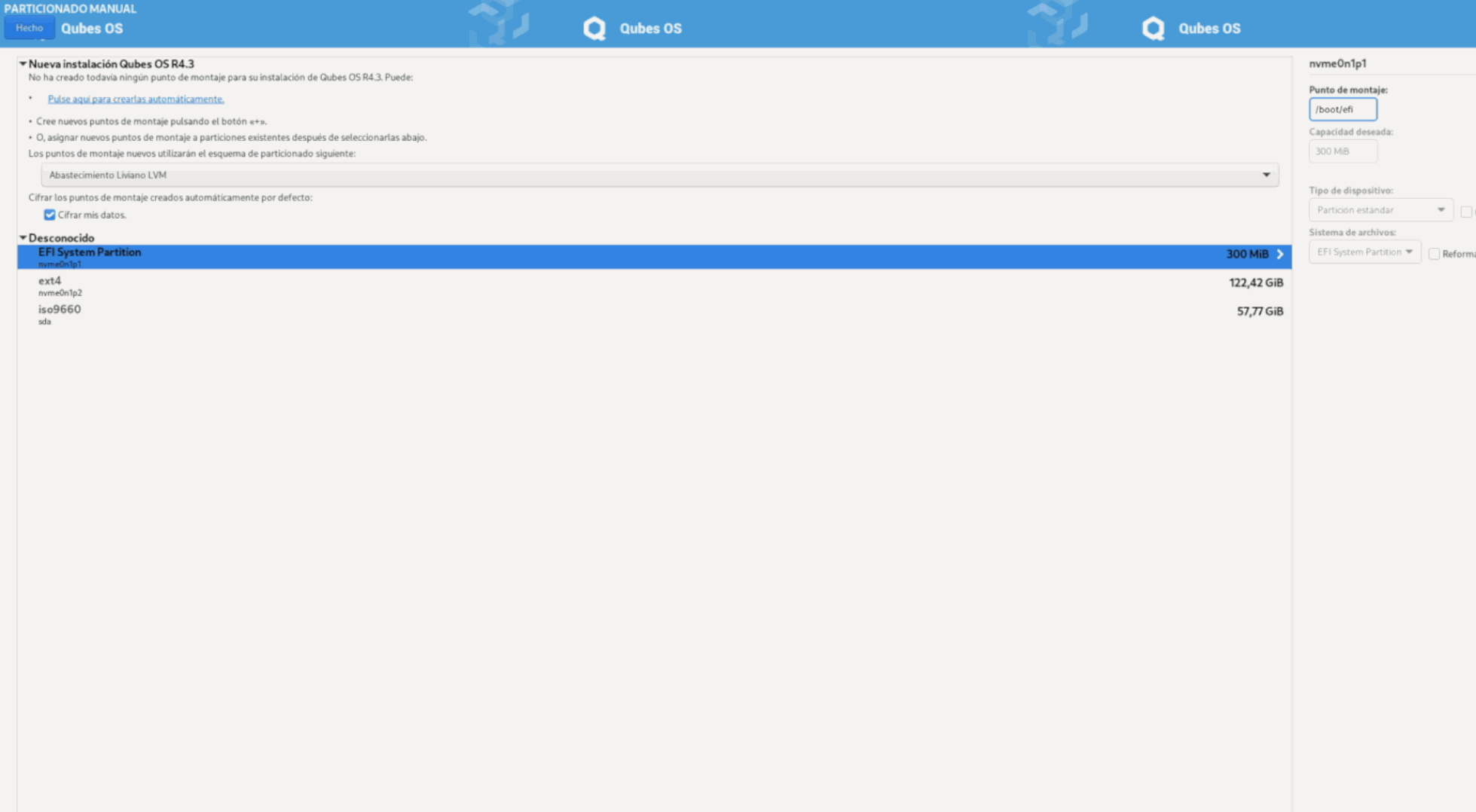
5. The, we select the partition with the free space that we allocated before, press the + button and write the mounting point as /
We will select Standard Partition in the Device Type section and we will uncheck the encrypt option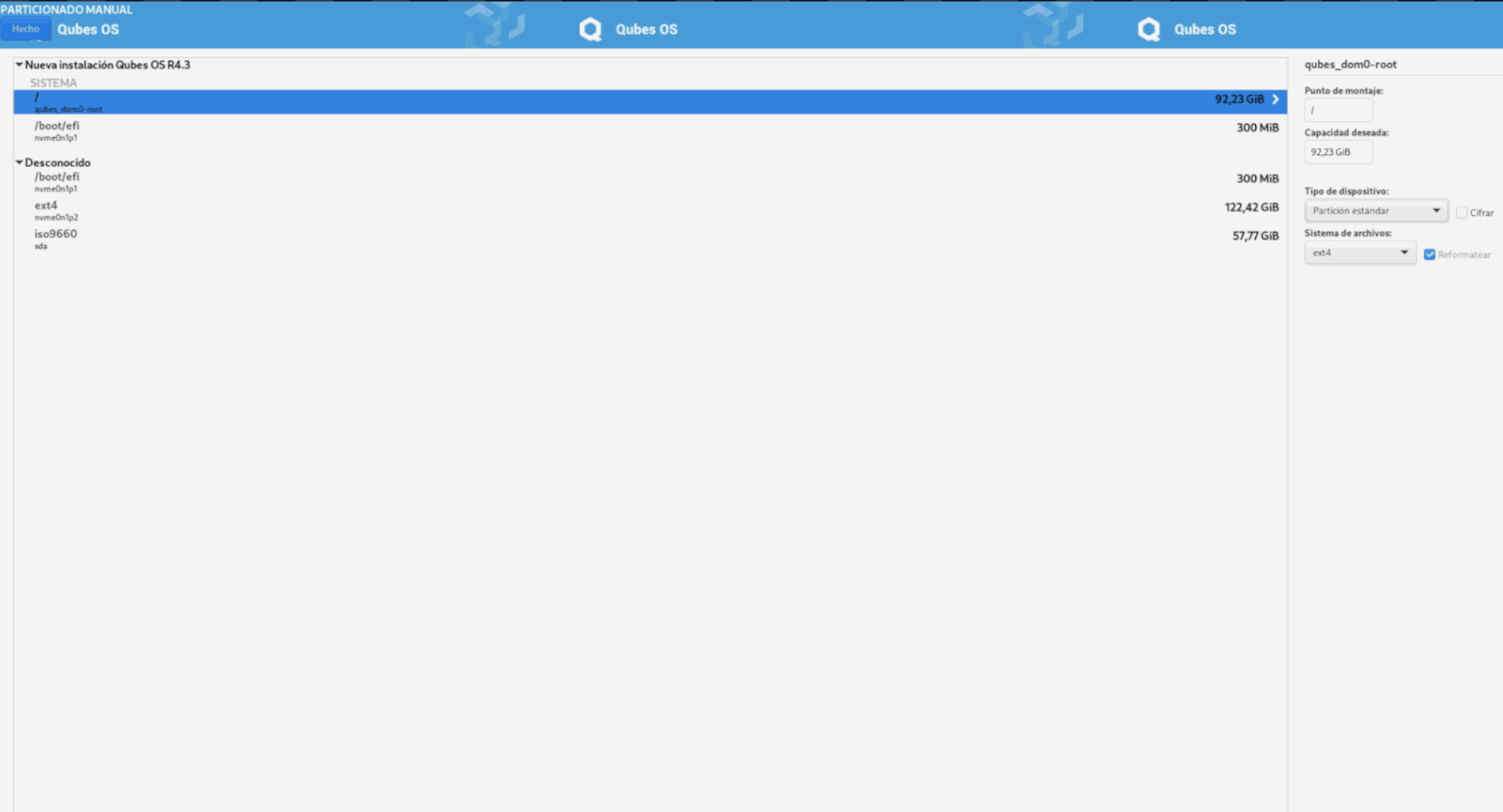
The specific configuration for this type of installation is done, the next steps will follow a normal installation, we will create an user and install the system
Post-Installation
After
the installation finishes and the device restarts, it will ask us to
configurate the system, after that you will have your QubesOS installation in your partition done.
QubesOS installs
GRUB as its bootloader, if you want to use GRUB you will need to
configurate the entries for the rest of OSs in your device.
We recommend installing
rEFInd as the bootloader, as this bootloader automatically searches for EFI entries in your system with no prior configuration